
Microsoft has confirmed a known issue that is preventing users from quitting the Windows 11 Task Manager after installing the October 2025 optional update.
This comes after widespread user reports that the Task Manager continues to run in the background even after quitting the app using the “Close” button, resulting in various performance issues, including stuttering and CPU hangs.
“After installing Windows Updates released on or after October 28, 2025 (KB5067036), you might encounter an issue where closing Task Manager using the Close (X) button does not fully terminate the process. When you reopen Task Manager, the previous instance continues running in the background even though no window is visible,” Microsoft said.

“This results in multiple lingering instances of taskmgr.exe, consuming system resources and potentially degrading device performance. Additional instances appear as “Task Manager” in the Processes tab and as “Taskmgr.exe” in the Details tab.”
While having a handful of Task Manager processes running in the background has minimal impact and shouldn’t cause any issues on most systems, this puzzling bug can become a serious problem when dozens of them run unnoticed and “can cause noticeable slowdowns in other applications,” according to Microsoft.
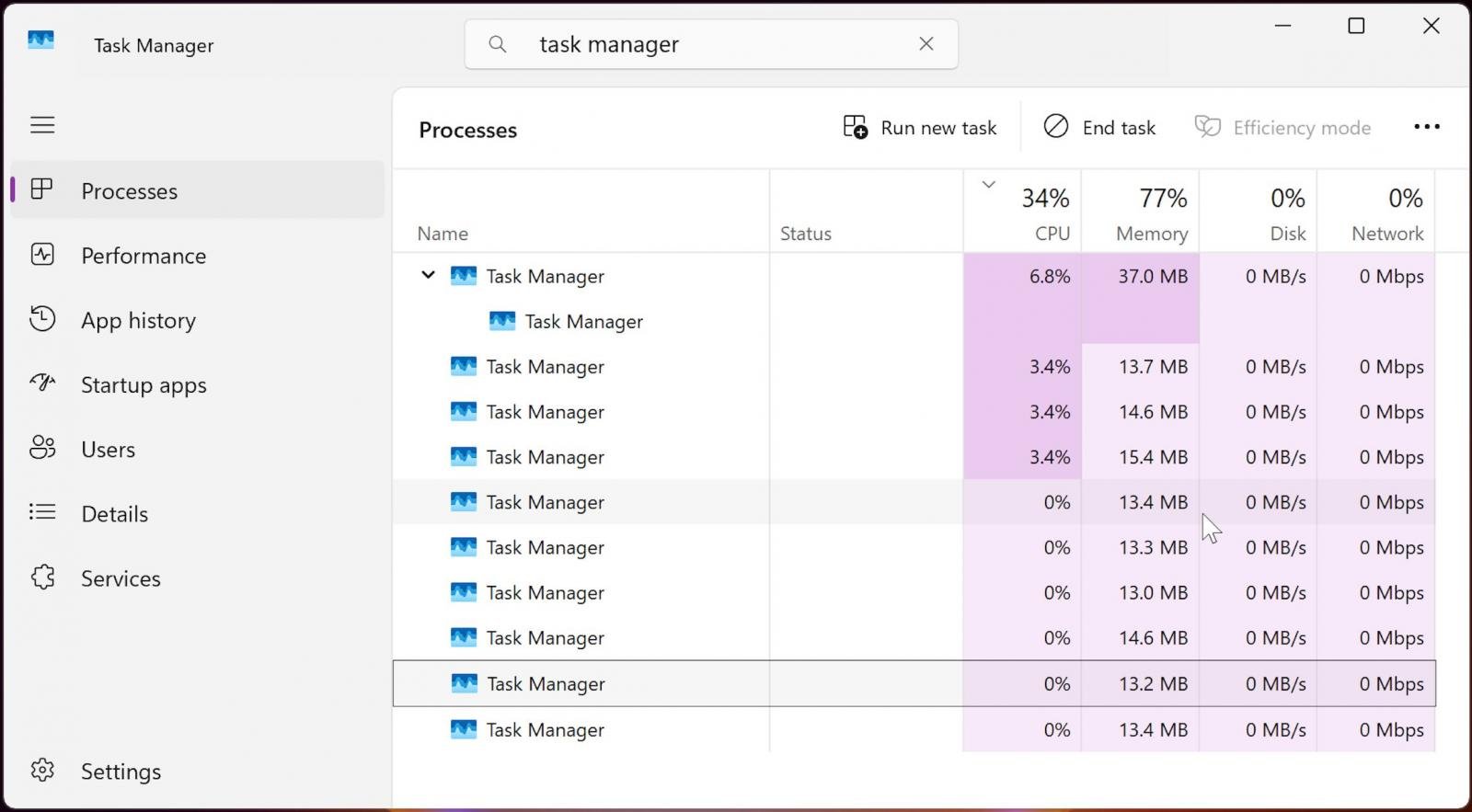
Although Microsoft is still investigating this known issue and has yet to release a fix, it provided a temporary workaround for users who have installed last month’s KB5067036 preview update.
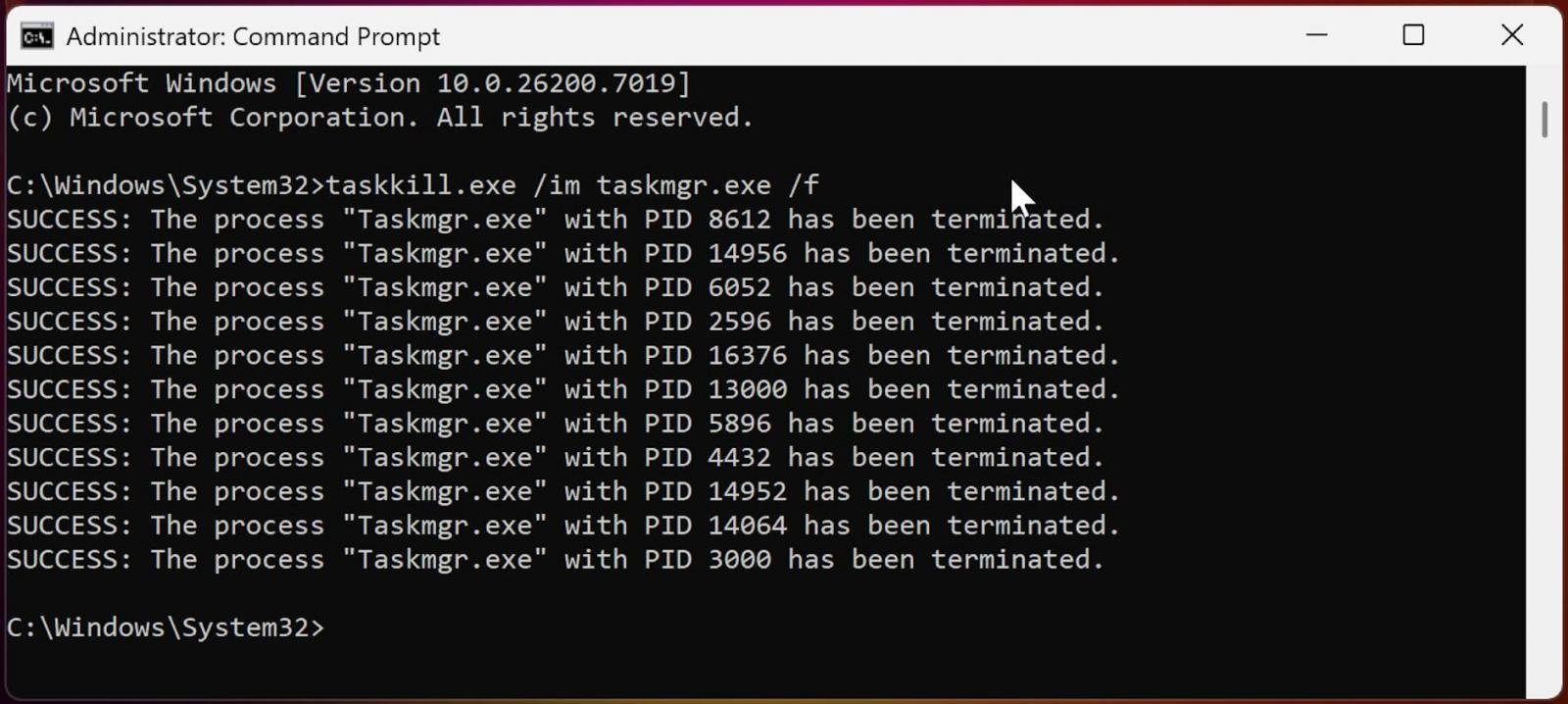
This requires affected users to either quit each process manually by selecting them in a new Task Manager window and clicking the “End Task” button at the top, or quit all of them simultaneously by going through the following steps:
- Select Start or press the Windows key.
- Type cmd or Command Prompt in the search box.
- Select Command Prompt from the results.
- To run as administrator: Right-click Command Prompt and select Run as administrator.
- In the Command Prompt window, type the following command and press Enter:
taskkill.exe /im taskmgr.exe /f
The KB5067036 non-security preview update, released on October 28, has added an updated Start Menu and started rolling out the Administrator Protection Windows security feature.
However, because it’s an optional update, it requires manual installation by clicking the “Download and install” link, unless the “Get the latest updates as soon as they’re they’re available” option is enabled, which will cause the update to install automatically.
With the release of KB5067036, Microsoft has also fixed the Windows 11 Media Creation Tool (MCT), which is now working again after it stopped working on up-to-date Windows 10 PCs and Windows 11 Arm64 PCs following the installation of the Windows 11 2025 Update.
This preview update also includes a fix for 0x800F081F update errors affecting Windows 11 24H2 systems after installing the KB5050094 January 2025 preview cumulative update and later updates.

As MCP (Model Context Protocol) becomes the standard for connecting LLMs to tools and data, security teams are moving fast to keep these new services safe.
This free cheat sheet outlines 7 best practices you can start using today.